 DoggyGuard by KalisPro
Live alerts with a graphic
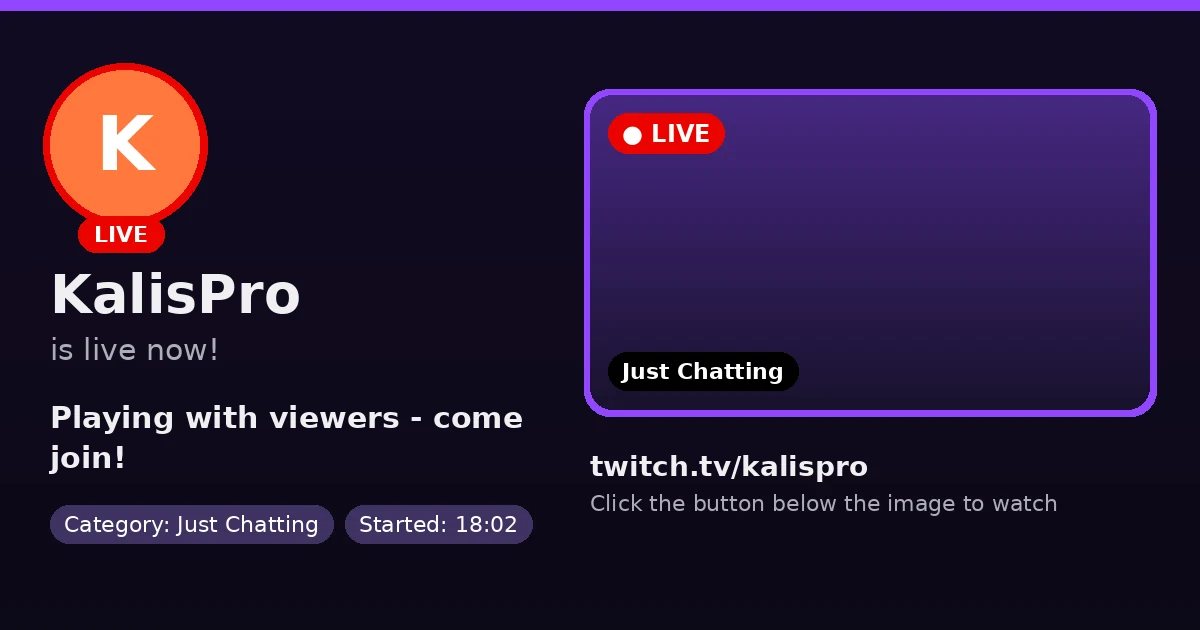
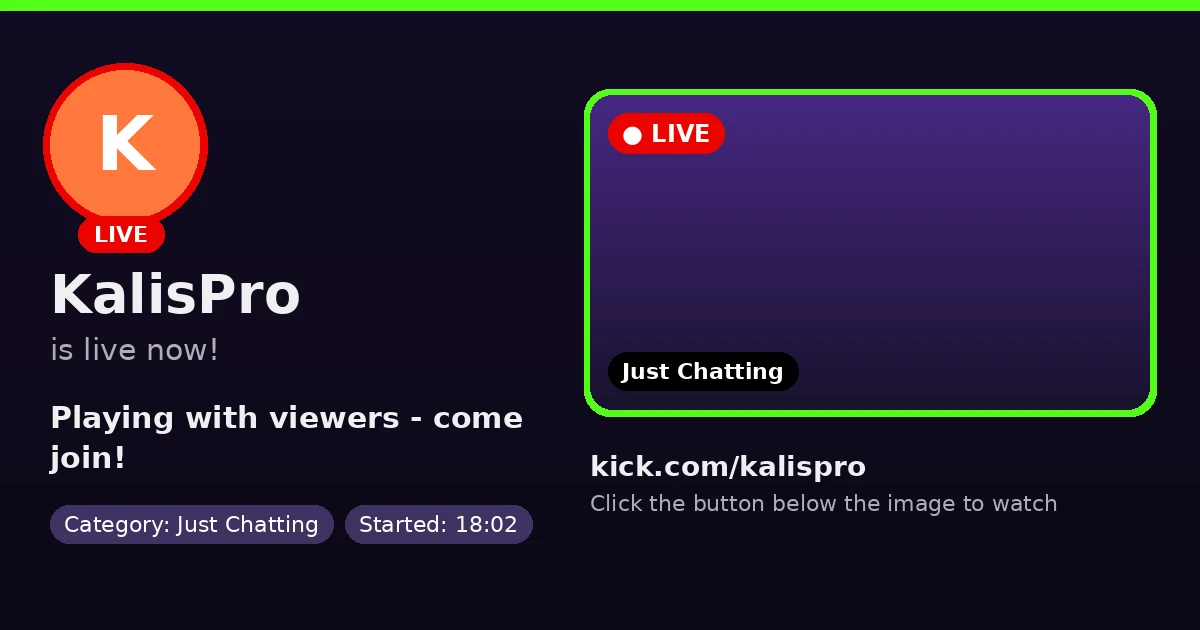
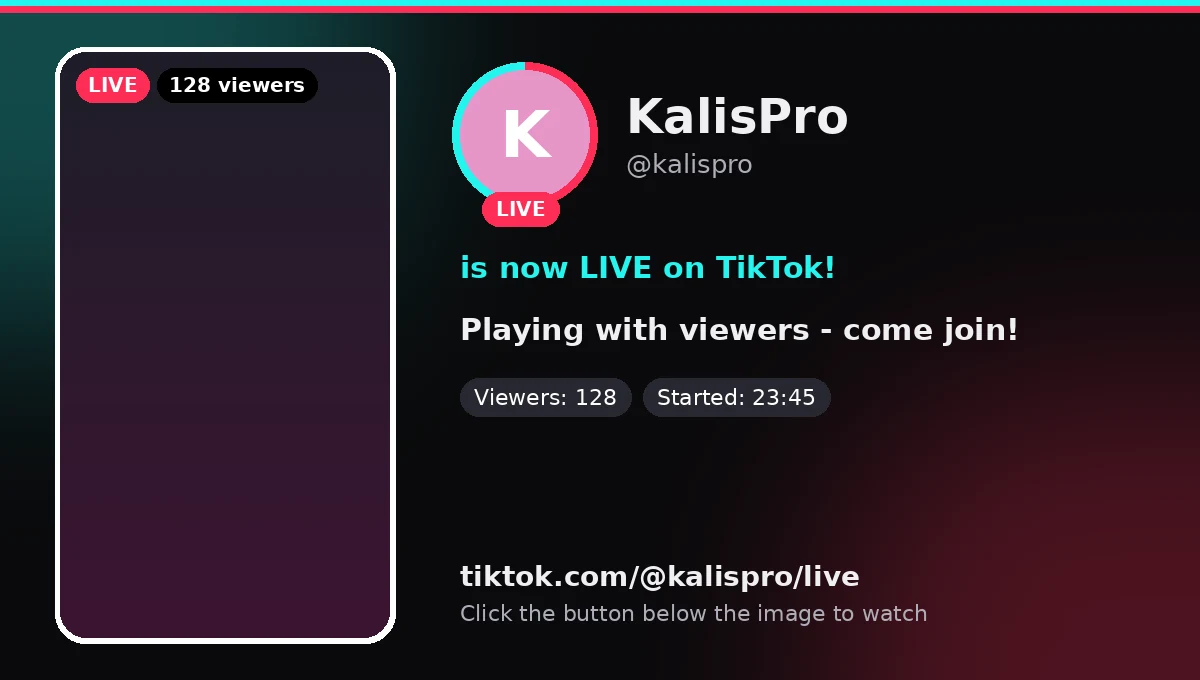
When you go live the bot posts a graphic with your avatar, a frame from the stream, the title and the category. A button underneath leads straight to the broadcast.
- Twitch
- TikTok
- Kick
DoggyGuard announces your streams from Twitch, TikTok and Kick, runs your weekly schedule, sums up your streams and spots free games. You set it all up with commands in Discord or in the web dashboard.
One bot instead of several. You turn each feature on separately and set it up for your own server.
When you go live the bot posts a graphic with your avatar, a frame from the stream, the title and the category. A button underneath leads straight to the broadcast.
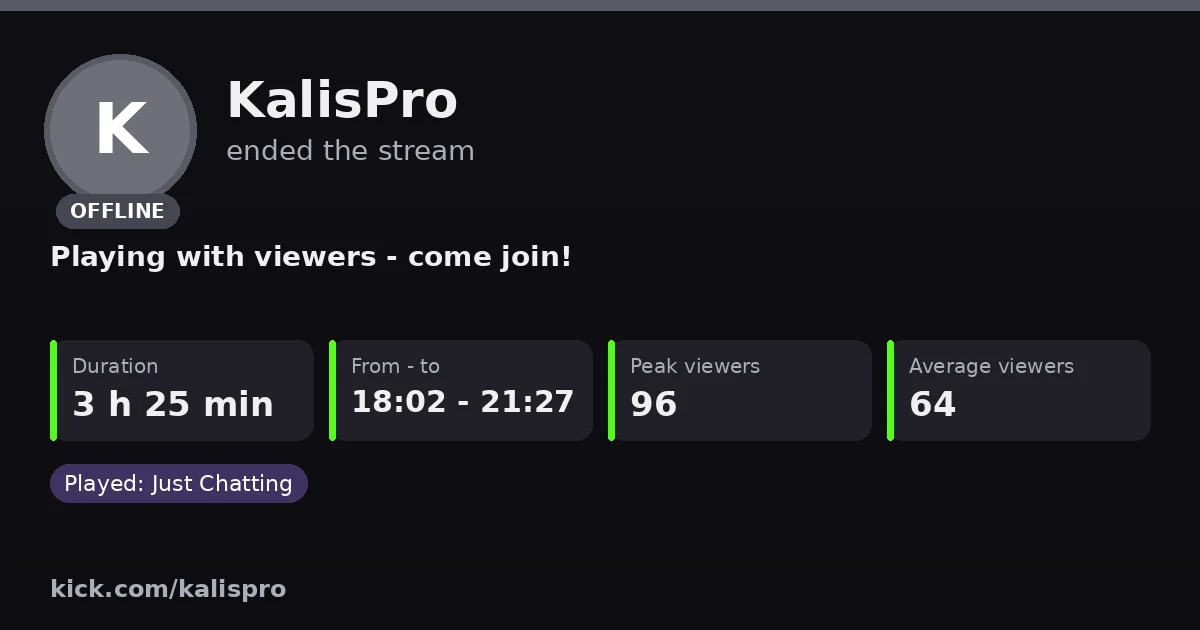
The same alert turns into OFFLINE: duration, start and end time, peak and average viewers, and the categories you played.
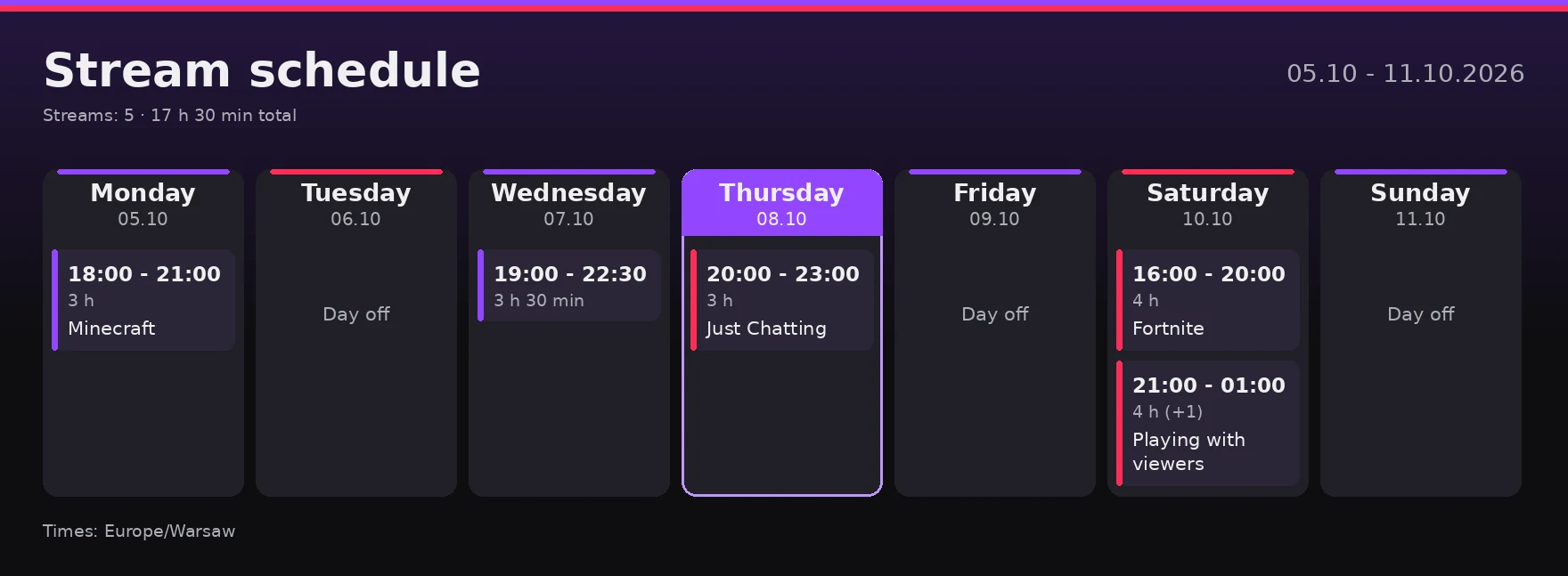
Enter your streams and the bot draws the schedule graphic and posts it. Each day it highlights today, and before every stream it can mention a role, from 15 minutes to 6 hours ahead.
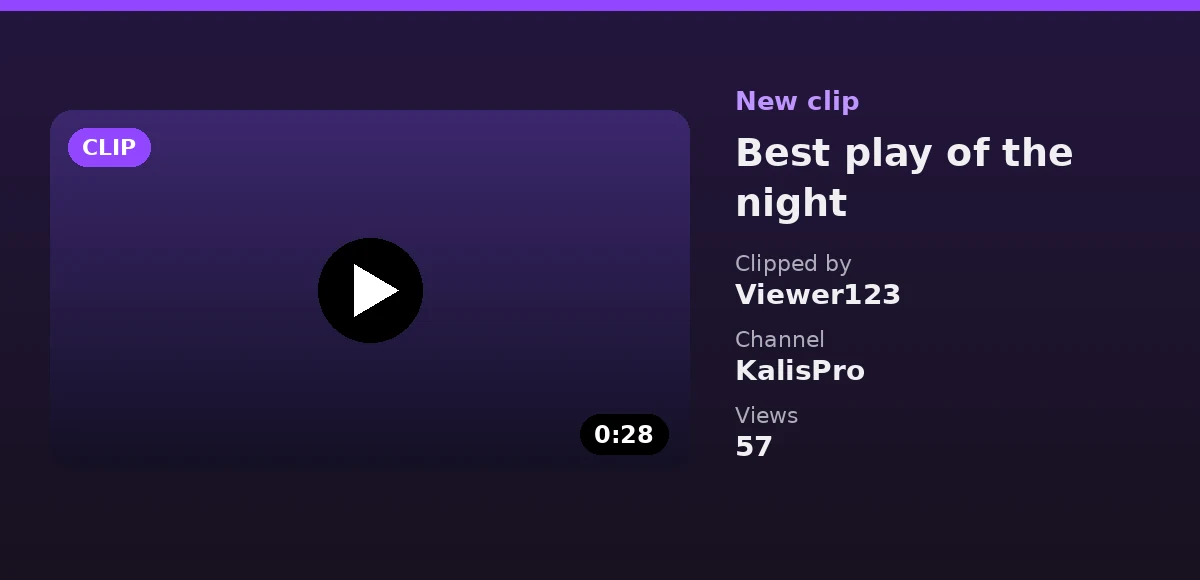
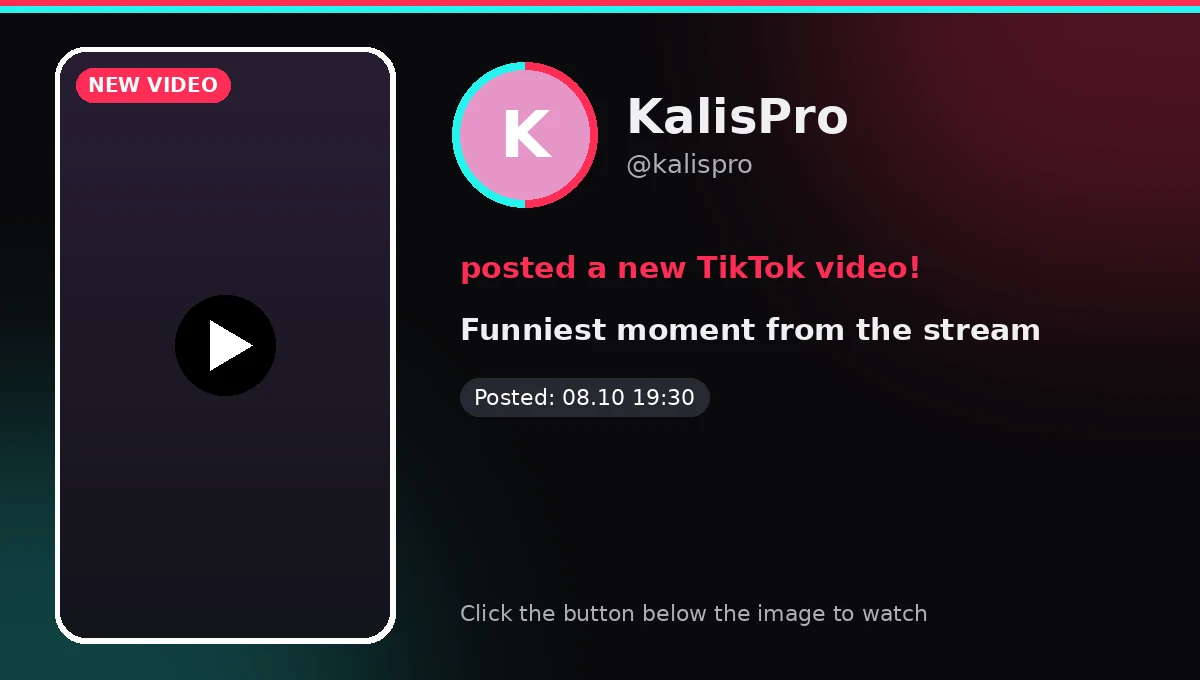
New Twitch clips and new TikTok videos land in your chosen channel by themselves, with a thumbnail, title and view count.
Only full games you keep. You pick the platforms and the link leads straight to the game in its store.
Set a price limit and how popular games must be. The bot posts only the cheapest offer for a game and does not repeat it unless it clearly gets cheaper.
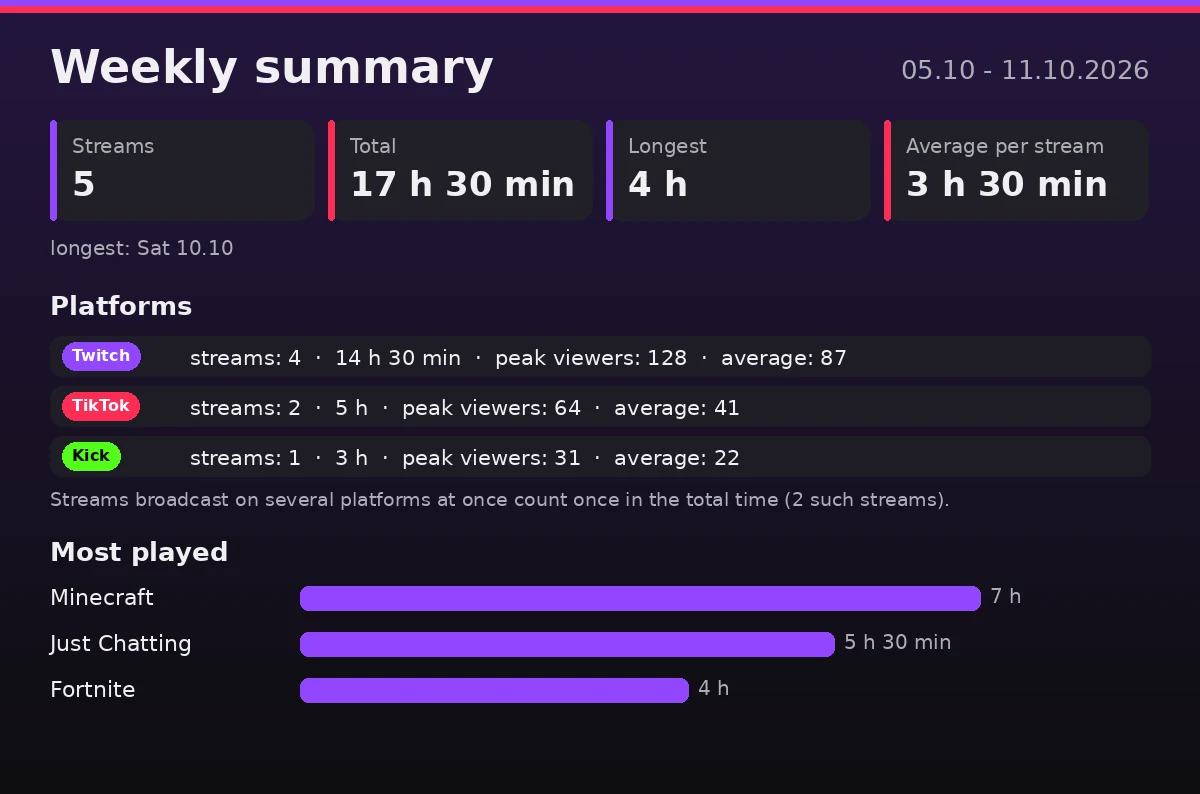
On Mondays and on the first of the month the bot posts a graphic: number of streams, total time, viewers and your most played categories.
The /check command goes through every configured channel and role and tells you plainly what is missing before something fails to arrive.
Set the message language per server with /language. You can preview every alert with the show command before your viewers see it.
These are real graphics generated by the bot, with sample data. The bot sends them in Polish or English, depending on your server setting.
Type a slash in Discord and the bot suggests the parameters. You can change the same settings in the web dashboard. Only people with the Manage Server permission see the commands and the dashboard.
/twitch addTwitch channel, alert channel, clips and the role to mention./tiktok addTikTok profile: live alerts and new videos./kick addKick channel with LIVE and OFFLINE alerts./schedule addA stream in the weekly schedule: day or date, hours and title./schedule postPosts the schedule graphic and sets the ping before each stream./deals freeChannel for free games and the platforms to follow./deals promoDeals: price limit, popularity and stores./summary setupAutomatic weekly and monthly summaries./checkChecks the bot's permissions on configured channels./languageThe bot's message language: Polish or English./twitch add, /tiktok add or /kick add./check command confirms the bot has every permission it needs.Yes. The bot is free for every streamer, with no subscription and no paid features.
Add it to your server with the button on this page, then set everything with slash commands in Discord, for example /twitch add, /schedule add or /deals free, or in the dashboard at panel.kalispro.uk after logging in with Discord. The commands and the dashboard need the Manage Server permission.
Twitch, TikTok and Kick. Each one can have its own Discord channel and its own role to mention.
View channels, send messages, embed links, attach files and read message history. It does not ask for administrator permissions. The /check command shows if anything is missing.
No. You choose the role it mentions when a stream starts. For free games and deals the role is mentioned at most once every 12 hours, and you can change that gap.
From official stores including Steam, Epic Games Store, GOG, Ubisoft and EA. Free games are full games you keep, with no DLC, demos or free weekends.
Yes. The /language command sets the bot's message language for your server: Polish or English.
On the official DoggyGuard Support Discord server. Ask a question, report a bug or suggest a new feature there.
For streamers small and large. If the bot helps you, you can buy me a coffee.